How to Connect Your Booking Website to Your Own Domain
Already have a domain you want to use? You can connect it to your Holidu booking website to drive more direct bookings under your own brand. This comprehensive guide will walk you through the entire process in just 6 simple steps.
Before You Start
Before beginning this setup, make sure you have access to your domain provider's settings (such as AWS, Vercel, or similar hosting providers). Here's an important reminder: if you already have a website live on that domain, it will be replaced by your direct booking website once this process is complete.
Step-by-Step Guide to Connecting Your Domain
Step 1: Enable Your Booking Website and Start the Domain Connection
The first step is to enable your Holidu booking website and initiate the domain connection process:
- Click Enable website if it is not enabled yet
- Click Connect my domain
- Enter your existing domain name in the provided field
Once you enter your domain name, a DNS tab will appear automatically. Holidu generates specific DNS values for your domain here. You'll need to copy these values and add them to your domain provider's settings in the following steps.

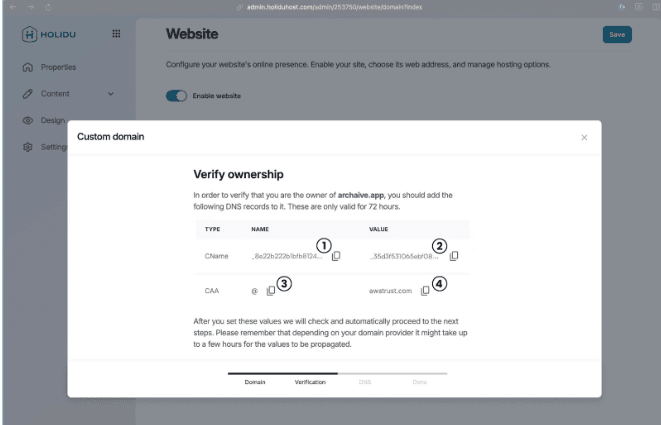
Tip: Don't worry if you're not familiar with DNS settings—we will guide you through each step. DNS (Domain Name System) simply directs your domain to point to your Holidu booking website.
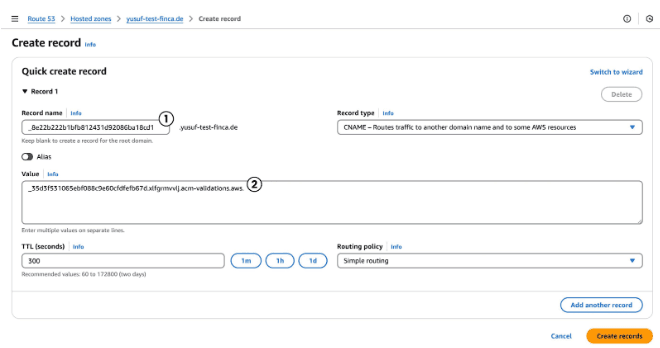
Step 2: Create a New CNAME Record in Your Domain Settings
Now you'll add the first DNS record. Log in to your domain provider and look for an option to create a new DNS record:
- Find the option to create a new record or DNS record in your domain provider
- For Type, select CNAME
- In the Holidu app, copy the NAME value from the CNAME line and paste it into the name field of the record
- Copy the VALUE from the same CNAME line and add it to the value field
- The TTL and Routing policy fields can usually keep their pre-filled default values
- Create the record by clicking Save or Submit
Example (AWS):
Important: If there are already records saved for the domain you want to use, delete those records first. This will disconnect your existing website from the domain temporarily, but it's necessary to allow your new direct booking website to connect properly.
Step 3: Add a CAA DNS Record in Your Domain Settings
Next, you'll create a second DNS record called a CAA record. This record helps secure your domain:
- Create another new record in your domain provider settings
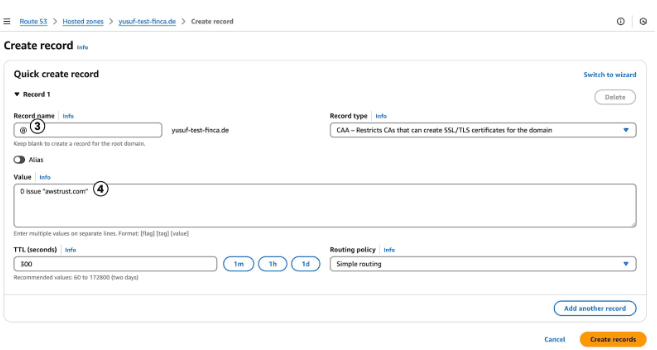
- For Type, select CAA
- Copy the NAME value from the CAA line in the Holidu app and paste it into the name field
- Copy the VALUE from the Holidu app and paste it into the value field
- Note: Some domain providers require a special format for the value field, such as 0 issue "http://awstrust.com". In this case, add the value from the Holidu app within quotation marks
- Keep the TTL and Routing policy fields at their default values
- Create the record
Step 4: Wait for Holidu to Verify Your DNS Records
You've completed the first two DNS records. Now it's time to let Holidu verify that these records are correctly set up:
- Go back to the Holidu app
- Holidu will automatically check your DNS settings
- This verification process typically takes around 5 minutes, but can sometimes take up to 24 hours depending on your domain provider
- You'll see a confirmation message once your domain is verified
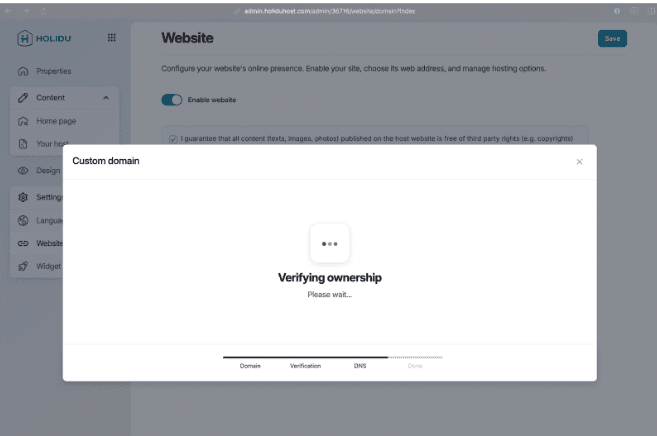
Once Holidu confirms that your DNS records are recognized, you'll be guided to the final step of the setup process.
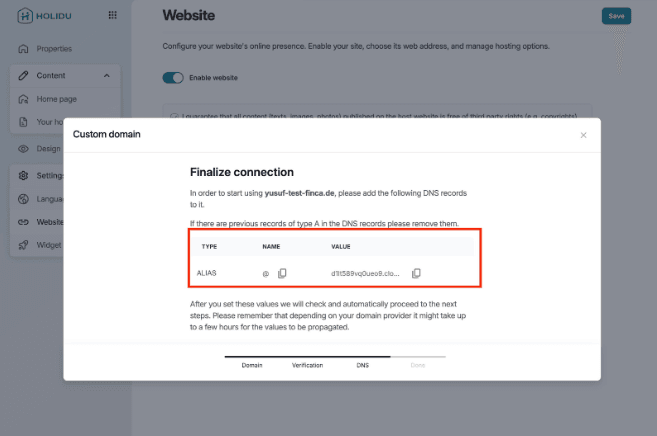
Step 5: Add an ALIAS DNS Record in Your Domain Settings
After Holidu verifies your domain, there is just one more DNS record to add. Holidu will provide you with the specific values needed:
- Return to your domain provider
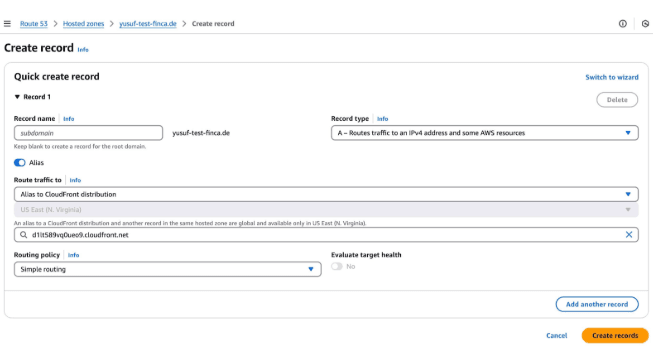
- Create a new record and set the Type to ALIAS
- Copy the NAME and VALUE from the Holidu app and add them to the corresponding fields
- Create the record
Verification checklist: Before moving forward, verify that your domain provider settings now include all three of the following DNS records:
- CNAME record
- CAA record
- ALIAS record
All three records are essential for your direct booking website to connect properly to your domain.
Step 6: Final Verification and Go Live
You're almost done! Now complete the final verification step:
- Head back to the Holidu admin interface
- Wait until your domain shows as fully verified in the system
- Once verification is complete, your direct booking website will be live and accessible via your own domain
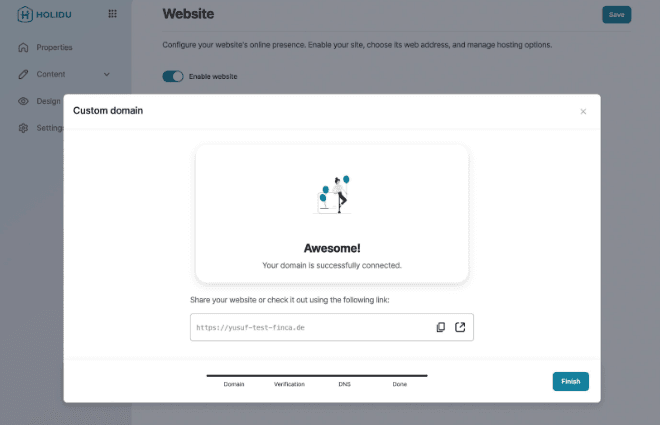
Congratulations! Your booking website is now connected to your own domain. Your guests can now book directly through your branded website, strengthening your brand identity and potentially increasing direct bookings.
Troubleshooting Tips
If your domain isn't connecting after completing all steps, here are some helpful tips:
- Wait longer: DNS propagation can take up to 24 hours in some cases. If verification doesn't complete within 5 minutes, wait a few more hours and try again
- Double-check your values: Make sure you've copied the NAME and VALUE fields exactly as they appear in the Holidu app. Even small typos can prevent the connection
- Verify all three records exist: Ensure that all three DNS records (CNAME, CAA, and ALIAS) have been successfully created in your domain provider
- Check for conflicting records: If you deleted old records but your domain still points elsewhere, contact your domain provider for assistance
- Contact support: If you're still experiencing issues after following these steps, reach out to Holidu support for additional assistance
Summary
Connecting your Holidu booking website to your own domain is a straightforward process that enhances your brand presence and helps drive direct bookings. By following these 6 simple steps, you'll have your personalized booking website up and running in no time. Remember to have your domain provider credentials ready, take your time with the DNS record creation, and allow sufficient time for verification. Your branded direct booking website is now ready to welcome guests!
Do you want to contact us?
We’re here to help. You can contact us directly if you need assistance or have questions.
Contact us